

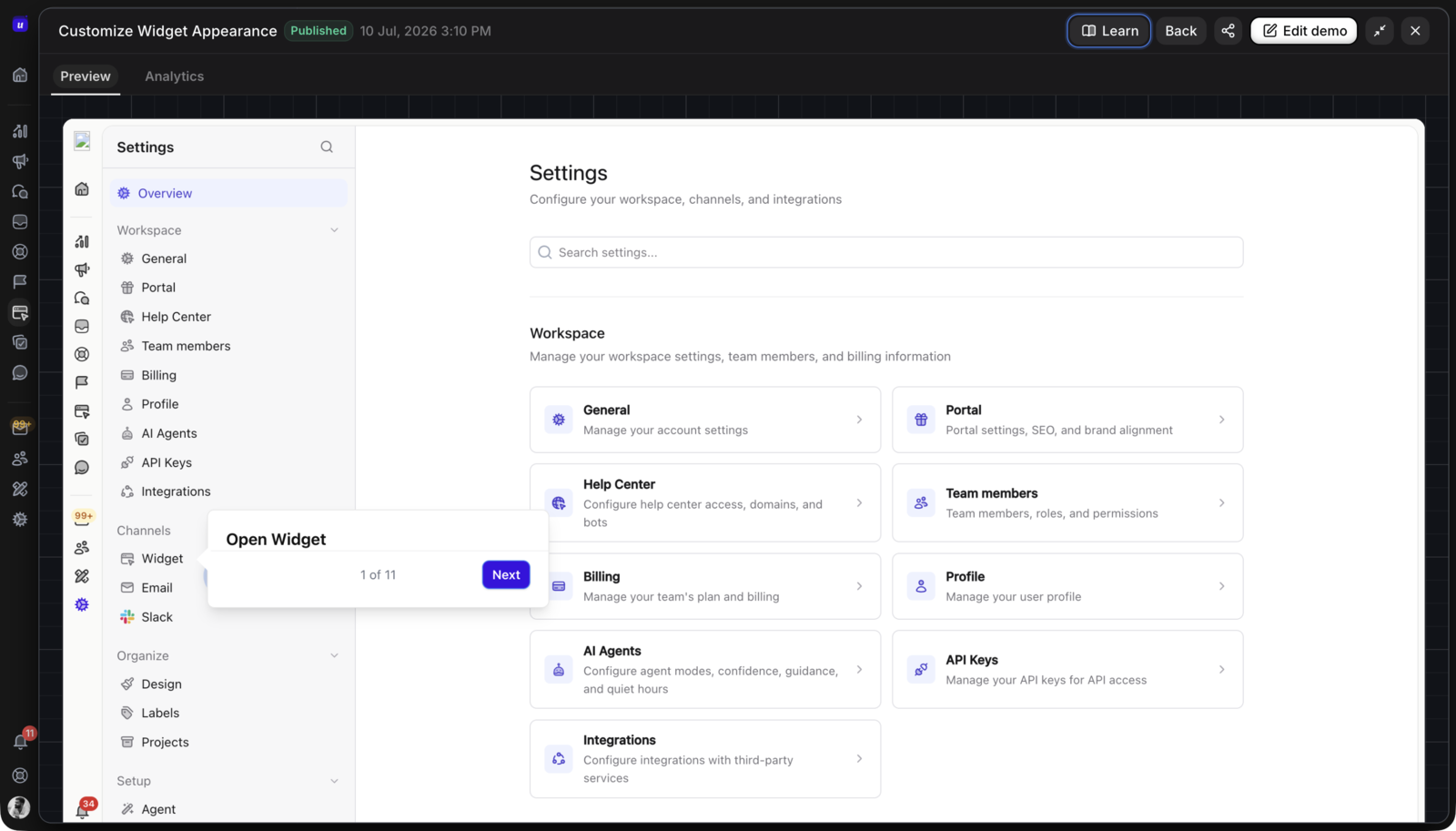








Choose an interactive demo when a prospect, customer, or teammate should click through a controlled product workflow. Choose a product tour when a user is already inside your live application and needs guidance toward a real action. Choose a demo video when the audience should understand the story without having to interact. Most SaaS teams use all three: interactive demo before signup, product tour during activation, and video for launch, social, email, or sales follow-up. For SaaS teams comparing interactive demo software, product tour software, and demo video tools, the right choice is the viewer's next action, not the format with the most features.
This guide was reviewed on October 18, 2026 against Userorbit's current interactive demos, product tours, demo videos, pricing, and help-center documentation. For dedicated demo-platform buying, continue with the Storylane pricing guide and best Storylane alternatives. Plans, limits, and product workflows can change, so confirm the live source before committing to a rollout.
If Navattic is on your shortlist, use the Navattic pricing guide for current plan structure, the best Navattic alternatives guide when the decision depends on onboarding, support, video, or broader lifecycle reuse, and Navattic vs Storylane vs Userorbit for a direct three-way platform comparison.
Quick decision: which format should you use?
| If the job is... | Start with... | Why |
|---|---|---|
| Letting a buyer explore a workflow before signup | Interactive demo | It gives the viewer a controlled, clickable product experience without requiring an account or live data. |
| Helping a new user reach value inside the app | Product tour | It can point at the real interface, explain the next step, and guide the user through their own workspace. |
| Explaining a launch in a short, repeatable story | Demo video | It is easy to watch in an email, social post, sales follow-up, help article, or announcement. |
| Showing a feature and then getting users to try it | Interactive demo + product tour | The demo explains the outcome; the tour guides the live action after signup. |
| Reaching a broad audience quickly | Demo video + announcement | A watched asset creates fast awareness, while the announcement can point to the next step. |
| Answering a workflow question in documentation | Interactive demo + written steps | Readers can click through the important path and still use the text as a reference. |
The format is a distribution decision, not a permanent product decision. The same workflow can become a demo, a tour, and a video when each version has a clear job.
The short version: these formats solve different problems
The terms overlap because each format explains a product. The viewer's context is what separates them.
- Interactive demos show a controlled representation of the product. The viewer chooses where to click, but the experience does not depend on the viewer's account, permissions, data, or application state.
- Product tours guide a user through the live product. They are strongest when the user can take the action immediately and the guidance can respond to the user's role, plan, behavior, or current page.
- Demo videos tell a product story passively. They are strongest when reach, pace, narration, or a repeatable visual explanation matters more than exploration.
An interactive demo is not a replacement for an in-app tour. A tour is not a replacement for a launch video. Treating them as interchangeable usually creates the wrong experience: a prospect is asked to navigate a live environment they cannot access, or an activated user is shown a recording when they need to click the real control.
Interactive demos: best for pre-sale understanding and reusable education
An interactive demo is a guided product experience that a viewer can explore without entering the real application. It may use captured screens, editable HTML, hotspots, forms, branching, or other controlled interactions. The key property is containment: the demo shows the workflow while protecting the viewer from the permissions, data, and state problems of a live workspace.
Use an interactive demo when
- a prospect needs to see the product before booking a call or creating an account
- a product marketer wants a clickable asset on a landing or comparison page
- sales needs a consistent follow-up that is more useful than a recording
- customer success wants to show a workflow without exposing customer data
- a help article needs a visual path beside the written instructions
- a launch or changelog entry should show users what to try next
- one workflow needs to be reused across marketing, onboarding, help, and adoption work
What an interactive demo can do well
Interactive demos are good at controlled exploration. The viewer can move through a workflow, pause on a step, follow a hotspot, submit a lightweight form, or choose a path without changing production data. That makes them useful for product understanding and qualification.
They are also good at reuse. A team can create one explanation for a high-value workflow, then publish it in the places where that workflow needs context. Reuse reduces the common failure mode where marketing has one demo, onboarding has a different tour, support has old screenshots, and customer success has a separate recording.
They are less useful when the viewer must complete the action in their own account. A demo can show how to configure an integration; it cannot replace configuring the integration. The next step should be a signup, a live product tour, a checklist, or a help article that supports the real action.
Userorbit interactive demos
Userorbit's current interactive-demo workflow supports Chrome-extension capture, editable captured screens, hotspots and guided steps, forms and lead capture, demo collections, share links, embeds, and reporting for views, completion, drop-offs, CTA clicks, leads, and sessions. The Interactive Demos product page positions the same asset for websites, onboarding, help centers, announcements, changelogs, roadmap updates, and adoption reporting. Its forms can optionally validate company email and recognize returning visitors, which is useful when a demo needs qualification without becoming a full signup flow.
The practical fit is a SaaS team that wants the demo to remain useful after the sales or marketing moment. A product marketer can publish it before signup, a product team can attach it to a launch, support can place it beside setup steps, and customer success can use engagement data to decide who needs follow-up.
Product tours: best for activation and feature adoption inside the app
A product tour runs in the live product. It can highlight a real control, explain what the user is seeing, and guide the user through an action that is available in their workspace. A tour can be a short tooltip sequence, a multi-page walkthrough, a feature education flow, or part of a larger onboarding journey.
Use a product tour when
- the user has signed up and can take the action now
- a new workspace needs a guided first session
- a feature has shipped and existing users need help finding it
- different roles, plans, or lifecycle stages need different guidance
- the message should respond to the current page or user behavior
- you want completion or drop-off data tied to the live product experience
- the user needs a tour, checklist, or contextual prompt rather than a detached explanation
What a product tour can do well
Product tours are good at context and action. The user sees the real interface, can follow the actual navigation, and can finish the workflow in the same session. This is why tours are usually the right format for activation and feature adoption.
They are also good at targeting. A tour can be shown to a relevant audience based on supported user or account data, page context, lifecycle stage, or behavior. The right audience sees the right guidance instead of receiving a generic product walkthrough.
The tradeoff is that a live tour depends on the product. Selectors can change, permissions can hide a control, a workflow can require data that the user does not have, and a tour can become intrusive if it interrupts work. Test the real path, keep the steps short, and give users a clear way to skip or revisit the guidance.
Userorbit product tours
Userorbit's Product Tours page describes code-free tour creation, targeted experiences, analytics, light and dark themes, 45-language localization, voiceover and video steps, carousel steps, and visual editing. Its help center documents tour analytics such as starts, completions, trends, and recent visits, as well as custom-property targeting and visual editing in the live app.
Use a tour when the next click matters. If the user is still deciding whether the product is relevant, show the workflow with an interactive demo first. If the user is learning the workflow in a controlled environment, use the demo as preparation and the tour as the handoff into the live product.
Demo videos: best for reach, pace, and a passive explanation
A demo video is a watched product story. It can use screen captures, screenshots, narration, captions, motion, music, and a call to action, then render to a shareable video file. The viewer does not need to choose a path or understand the product's interaction model to get the main point.
Use a demo video when
- a launch needs a concise explanation that works without a facilitator
- the audience is arriving from social, email, a webinar, or a sales follow-up
- narration, pacing, or a clear before-and-after story matters
- the content should be exported and reused across channels
- the first goal is awareness, not completion of a product workflow
- the viewer may not have access to the product yet and should not be asked to click through
What a demo video can do well
Videos are good at reach and narrative control. The author chooses the sequence, pace, voiceover, captions, and ending. That makes a video easier to consume in a feed or email, and it makes the first 30 seconds predictable for a busy audience.
Videos are also good at channel fit. A rendered asset can be placed in a launch announcement, social post, sales sequence, onboarding email, help article, or internal enablement page without asking every channel to support an interactive player.
The tradeoff is passivity. A view does not show whether someone understood the path or could complete it. If the viewer needs to investigate a workflow, add an interactive demo. If the viewer needs to perform the action, send them to the live product and use a tour or checklist.
Userorbit demo videos
The Demo Videos page describes a prompt-to-video workflow that can use website URLs, screenshots, product assets, and Chrome-extension captures. Teams can target 15, 30, or 60 seconds, edit scenes, captions, voiceover, motion, and music, then render an approved version to MP4.
That makes demo videos a strong companion to interactive demos. Capture a workflow once, publish the clickable version for people who want to explore, and render the narrated version for people who need the story quickly. Keep the call to action aligned: a video about onboarding should lead to signup or an onboarding guide, not just another video.
Interactive demo vs product tour vs demo video
| Dimension | Interactive demo | Product tour | Demo video |
|---|---|---|---|
| Viewer control | Clickable, guided exploration | Guided interaction in the live app | Passive viewing |
| Environment | Controlled capture or demo state | User's real workspace | Rendered story or recording |
| Best moment | Before signup, sales follow-up, docs, launch education | Activation, feature discovery, in-app help | Launch reach, social, email, sales, narrated explanation |
| Main next action | Book, try, signup, or open the live workflow | Complete the workflow in the product | Click the CTA, visit the product, or watch the next asset |
| Main strength | Explain a workflow without live-app risk | Turn guidance into real product behavior | Control pace and communicate at scale |
| Main risk | Viewers may confuse the demo with the live product | UI changes or targeting can break the flow | Views can look healthy without proving understanding |
| Useful measures | Starts, completion, step drop-off, clicks, leads, sessions | Starts, completion, drop-off, goal completion, adoption | Views, watch time, CTA clicks, leads, assisted conversions |
| Maintenance | Refresh captures when the workflow changes | Test selectors, permissions, targeting, and mobile behavior | Re-render when the product story or assets change |
The right choice is usually the format that makes the next action easiest. Do not choose an interactive demo because it sounds more advanced if the audience only needs a 30-second explanation. Do not choose a video because it is easy to produce if the user needs to complete a workflow in their own account.
Which format fits each SaaS use case?
Pre-sale evaluation
Start with an interactive demo. The buyer can explore the important path without waiting for a scheduled call, entering sample data, or receiving a temporary account. Use a demo video alongside it when the page needs a short overview before the deeper click-through.
The CTA should move the qualified viewer toward a relevant next step: start a trial, book a demo, open a comparison, or view the workflow's implementation requirements.
Onboarding
Use a product tour or checklist for the action itself. An interactive demo can prepare the user by showing the outcome, especially when the first live session has several concepts to introduce. A video can support an email or welcome message, but it should not be the only path to activation.
For a practical activation sequence, pair a short explanation with one guided action. A user who watches a video about creating their first report still needs a live prompt pointing to the report builder and a way to confirm completion.
Feature adoption
Use all three formats at different points in the launch:
- Demo video creates awareness in the announcement, email, or social channel.
- Interactive demo shows the workflow to users who want to understand the feature before opening it.
- Product tour guides eligible users through the real feature after they enter the app.
This turns a launch from a broadcast into a path. The in-app announcement tools guide covers the communication layer; the demo, tour, and video decision belongs alongside it.
Help content
Use an interactive demo when a workflow has several visual steps or when a screenshot sequence would become stale quickly. Keep written instructions for exact labels, prerequisites, permissions, and troubleshooting. Add a video when the workflow benefits from narration or when the reader needs a fast overview before the detailed steps.
Do not hide important requirements inside the player. A help article should state the supported plan, account role, setup prerequisites, and expected result in text so the reader can scan and search it.
Launch communication
Use a demo video for the broadest announcement reach, an interactive demo for the people who want to explore the workflow, and a product tour for users who are ready to try it. Link the formats to the same source of truth so the launch does not show three slightly different versions of the feature.
For release workflows, connect the asset to the changelog and release-notes guide and make the next step visible in the announcement. A launch is not complete when the video renders; it is complete when the intended audience can understand and use the shipped feature.
How to use all three without creating three content projects
The efficient model is to start from one high-value workflow and create format-specific outputs from it.
1. Choose one workflow with a measurable next step
Pick a path that causes friction, drives revenue, affects retention, or repeatedly creates support questions. Examples include setting up an integration, publishing an announcement, configuring a dashboard, or completing the first project.
Avoid turning every minor feature into a demo. The workflow needs enough value to justify capture, maintenance, distribution, and measurement.
2. Capture the product truth once
Record the clean path with realistic but safe data. Note the prerequisites, roles, plan access, and points where the user may see a different state. Use the capture as the source for the interactive version and the video where the tools support that reuse.
3. Build the interactive explanation
Remove irrelevant navigation, add short step instructions, hide sensitive data, and make the intended path obvious. Add a form or CTA only when the handoff is useful. The interactive demo should answer “what does this workflow feel like?” without pretending to complete the real action.
4. Build the live activation path
Create a product tour or checklist that starts at the user's actual entry point. Keep it shorter than the demo when possible. Use the live product to handle the parts a capture cannot: permissions, data creation, validation, and completion of the real outcome.
5. Render the passive version
Create a short video with one audience, one promise, and one next action. Use captions for silent viewing and keep the CTA visible at the end. A video should be understandable without the interactive player, but it should point to the deeper experience when exploration matters.
6. Publish and measure the handoff
Place each format where its job occurs: video in the launch or email, interactive demo on the product or help page, and tour inside the application. Track the transition between formats rather than treating each view as the outcome.
What to measure beyond views
Views are useful for reach, but they are a weak success metric by themselves. Measure the behavior that each format is designed to create.
| Format | Start with | Then connect to |
|---|---|---|
| Interactive demo | Starts, completion, step drop-off, hotspot or CTA clicks, forms, leads, sessions | Signup, booked meeting, product activation, or the relevant workflow event |
| Product tour | Starts, completion, step drop-off, dismissals, goal completion | Feature usage, activation, time to value, or retention signal |
| Demo video | Plays, watch time, completion, CTA clicks, leads | Landing-page conversion, signup, meeting, or downstream product engagement |
Set the outcome before publishing. If the goal is demo-qualified leads, capture the minimum lead data and connect it to the follow-up process. If the goal is feature adoption, define the product event that demonstrates use. If the goal is onboarding, measure the action after the tour rather than rewarding completion of the tour alone.
Userorbit's interactive-demo analytics help article documents visits, engagement, completion, step information, and lead views. Its product-tour analytics guide describes started, completed, trend, and recent-visit views. The measurement model should match the format's job and the product event that follows it.
Userorbit pricing and availability
Userorbit's current pricing page lists product tours and checklists across Growth, Scale, and Enterprise. It lists interactive product demos and demo videos on Scale and Enterprise. The current self-serve reference is Growth at $95/month billed annually ($119 month to month) and Scale at $249/month billed annually ($293 month to month); Enterprise is custom.
| Userorbit format | Growth | Scale | Enterprise |
|---|---|---|---|
| Product tours | Included | Included | Included |
| Interactive product demos | Not listed | Included | Included |
| Demo videos | Not listed | Included | Included |
An active trial or a workspace-specific override can change feature access in some workspaces. The official subscription help article is the better source for entitlement questions, while the pricing page is the source for current plan prices and limits.
Choose by team situation
Founder or first product marketer
Start with the narrowest format that proves the workflow. Use a short video if you need reach, an interactive demo if buyers need to explore, and a product tour if activation is already the bottleneck. Do not buy or build a full content system before one workflow has a measurable audience and next action.
Product-led growth team
Use an interactive demo before signup, then pass the user into a tour or checklist after signup. Put a video in launch communication when the audience needs a quick explanation. The main benefit is continuity: the same workflow can move from evaluation to activation instead of being rewritten at each stage.
Product marketing and sales
Use interactive demos for website evaluation, comparison pages, and follow-up. Use video for campaigns and narrated stories. Keep the CTA and qualification rules consistent so the team can understand which asset influenced the opportunity without treating every click as pipeline.
Customer success and support
Use interactive demos beside help content when customers need to see a workflow without sharing production data. Use tours for in-app education and video for customer updates or asynchronous enablement. Give the reader text-based prerequisites and a route to human support when the workflow cannot be completed.
Enterprise or heavily governed teams
Confirm capture, privacy, permissions, retention, branding, analytics, and ownership requirements before selecting a format. A controlled interactive demo can reduce production-data risk, but it does not remove the need to review screenshots, access rules, and customer information. Enterprise buyers should validate the implementation and support model with the vendor.
Common mistakes
Using a video when the user needs to act
A video can explain the workflow, but it cannot put the user in the right screen or verify that the action happened. Link to the live product, tour, checklist, or written setup steps.
Using a live product tour for pre-sale visitors
Visitors without accounts do not have the same data, permissions, or context as customers. A tour that depends on a live workspace can fail before the buyer understands the value. Use an interactive demo for the controlled pre-sale explanation.
Treating an interactive demo as the product
A captured screen can look real while still being a simulation. State what the viewer can explore, what requires signup, and which plan or integration is needed for the actual workflow.
Measuring completion instead of the business outcome
High demo completion can mean the story is clear. It does not prove that the viewer signed up, activated a feature, or solved the support question. Connect the format to the next action and review drop-off by audience and channel.
Creating a separate asset for every channel
Duplicated launch stories drift. Start from one maintained workflow, then adapt the interaction, pacing, and CTA to the channel. Keep the product truth and prerequisites consistent across the outputs.
Frequently asked questions
Interactive demo, product tour, and demo video FAQs
Direct answers for SaaS teams choosing a product education and adoption format.
Final recommendation
Use the format that matches the viewer's next action:
- Interactive demo for controlled exploration before signup, in sales follow-up, or beside help content.
- Product tour for live guidance during onboarding and feature adoption.
- Demo video for reach, narration, and repeatable launch communication.
If the same SaaS team owns marketing, onboarding, support, launches, and adoption, building these formats from one workflow is more useful than choosing one format and forcing every moment into it. Explore Userorbit's interactive demos, review the product tours, see demo videos, and see current pricing before deciding which format to ship first.
If you are comparing dedicated demo platforms, use the Arcade pricing guide for AI demos, video, and HTML-capture boundaries, and the Supademo pricing guide for creator, HTML, sandbox, and AI Demo Agent costs.
Turn one workflow into every product moment
Create an interactive demo, guide the live action with a tour, and publish the launch story as a video.