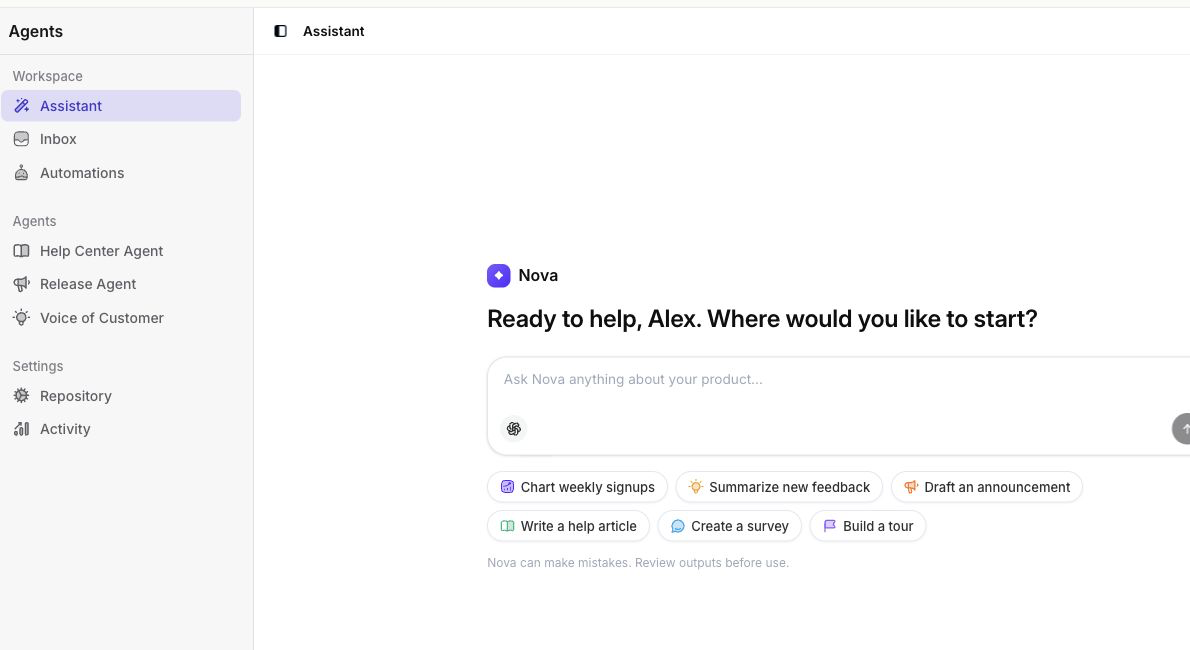
Open the AI assistant from the sidebar or the floating icon in the bottom-right corner of your workspace. Type your request in the message box and press Enter.
Use the Agent Assistant to ask questions about your workspace and draft product content with Nova.
Try a focused request such as:
If Nova creates a Help Center article directly, it appears under Created articles. Select it to open the article editor.
Some requests open a workspace beside the conversation so you can review and refine the entity Nova is building without leaving the Assistant.
To remove a conversation, open Past conversations and select the trash icon beside it. To begin with a clean context, select New conversation in the header.
Availability The Agent Assistant is available during an active trial and on Launch, Growth, Scale, Enterprise, and supported legacy paid plans. It is unavailable on Free workspaces.
Start a conversation
- Go to Agents → Assistant.
- Choose a suggested prompt, or enter your own request in the message box.
- Send the message. Nova shows its activity while it works and streams the response into the conversation.
Try a focused request such as:
- “Summarize recent activity in this workspace.”
- “Help me create a new announcement.”
- “Suggest improvements for my product documentation.”
Work with generated content
When Nova generates an article or announcement, the result appears under Generated content.- Select the generated item to preview it.
- Select Create Draft when you are ready to send it to the Agent Inbox.
- Open the queued item from the Agent inbox section of the conversation, or go to Agents → Inbox.
If Nova creates a Help Center article directly, it appears under Created articles. Select it to open the article editor.
Some requests open a workspace beside the conversation so you can review and refine the entity Nova is building without leaving the Assistant.
Return to an earlier conversation
Select Past conversations in the Assistant header, then choose a conversation. The list shows the conversation title, its product area when available, and when it was created.To remove a conversation, open Past conversations and select the trash icon beside it. To begin with a clean context, select New conversation in the header.