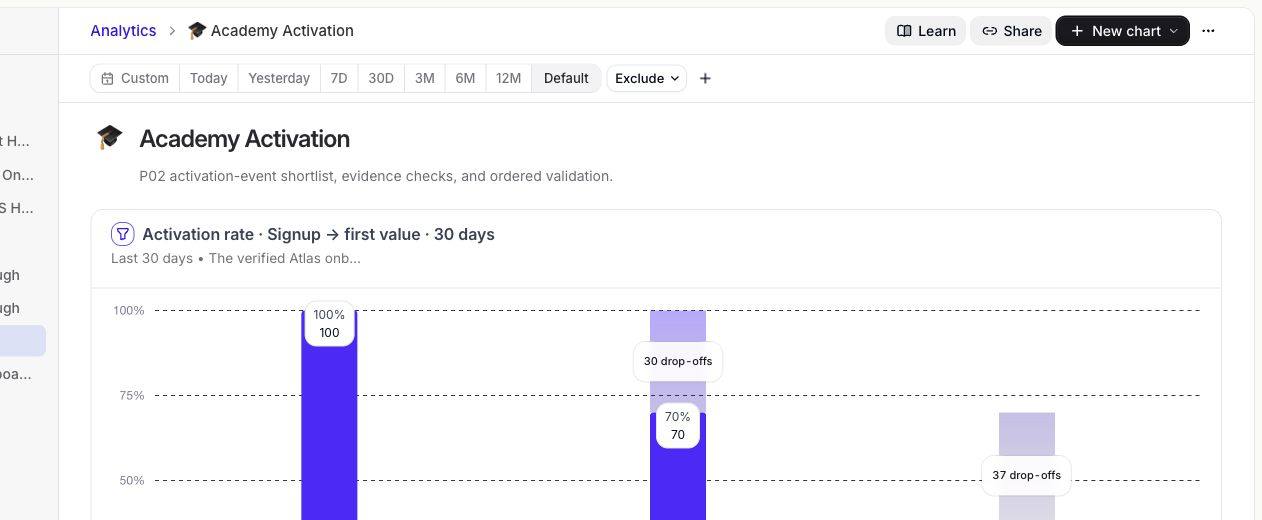
Use board filters to apply one date range and one audience exclusion across the reports on an analytics board. These filters let you compare charts using a consistent view without replacing each chart's saved settings.
The selected date range applies to every report on the board unless a report is set to use its own saved date.
To return every report to its saved date range, select Default.
The exclusion applies to every report on the board unless an individual report opts out. A board supports one shared exclusion rule at a time.
To remove it, select the Clear board exclusion icon beside the exclusion, or reopen the exclusion dialog and select Clear exclusion.
When either option is enabled, the tile displays Tile override. Clear the option to apply the board filter again.
Apply a date range to the board
- Go to Analytics and open a board.
- In the controls above the board, select one of these date ranges: Today, Yesterday, 7D, 30D, 3M, 6M, or 12M.
- To use exact dates, select Custom, choose the From and To dates, then select Apply.
The selected date range applies to every report on the board unless a report is set to use its own saved date.
To return every report to its saved date range, select Default.
Exclude an audience from the board
The board audience control excludes matching users or events. It does not create an inclusion filter.- Select Exclude in the board controls.
- Choose an event property, user property, or saved cohort.
- Define the value or rule to exclude.
- Select Apply to board.
The exclusion applies to every report on the board unless an individual report opts out. A board supports one shared exclusion rule at a time.
To remove it, select the Clear board exclusion icon beside the exclusion, or reopen the exclusion dialog and select Clear exclusion.
Exclusion only Use this control when you want to remove a cohort or a set of property values from the board. The board-level control cannot define an included audience.
Let one report use its saved settings
You can opt an individual report out of either shared board filter:- On the report tile, select Board filters.
- Turn on Use this chart's saved date to ignore the board date range for that report.
- Turn on Use this chart's saved audience to ignore the board exclusion for that report.
When either option is enabled, the tile displays Tile override. Clear the option to apply the board filter again.